
When it comes to troubleshooting the communication between Citrix XenDesktop 7.x VDA and Controller you have to enable the logging of both components. Citrix once had a tool for this, the “Log Enabler Tool”. It seems that Citrix dropped the development on that tool as it is only supported for XenDesktop 5.x. Read about it here and here. Instead you have to edit config files manually - no one should edit config files manually. That is why I wrote the PowerShell module CTXLogging to automate the process.
Installation#
You can find the module on the PowerShell Gallery.
First check if you have PowerShell 5 installed. PowerShell module installation with PowerShell 5 is very easy. It ships with Windows 10. But you can install it on other Windows versions, too -> Download.
Yes! PoSh 5 installed
It’s easy for you:
Install-Module CTXLogging -Scope CurrentUserNope! I’m a legacy guy
Download the module files from the PowerShell Gallery with Save-Module on a machine with PowerShell 5 and create a “CTXLogging” folder in $env:USERPROFILE\Documents\WindowsPowerShell\Modules. Paste the .psm1 and .psd1 files to the folder. Fire up a PowerShell and type:
Import-Module CTXLoggingUsage#
The module publishes four cmdlets you can use. The first two are for the Controller, the last two for the Virtual Desktop Agent (VDA).
- Enable-CTXControllerLogging
- Disable-CTXControllerLogging
- Enable-CTXVDALogging
- Disable-CTXVDALogging
Each cmdlet has a help section where you can see the usage of the cmdlet. If you want to know how to work with “Enable-CTXControllerLogging” just type
Get-Help Enable-CTXControllerLogging -FullHave a look at the available parameters to see what you can do with each cmdlet.
Examples#
Enable-CTXControllerLogging
#This will enable logging to the path 'C:\XDLogs'. Log file will not be overwritten. VDA is installed in folder 'C:\Program Files\Citrix'.

Enable-CTXControllerLogging -LogPathFolder '\\server\share' -OverwriteLogFile
#This will enable logging to the path '\\server\share'. Log file will be overwritten each time a controller service restarts. Controller is installed in folder 'C:\Program Files\Citrix'.

Disable-CTXControllerLogging
#Disables logging of Citrix controller services.

Enable-CTXVDALogging
#This will enable logging to the path 'C:\XDLogs'. Log file will not be overwritten. VDA is installed in folder 'C:\Program Files\Citrix'.

Enable-CTXVDALogging -LogPathFolder '\\server\share' -OverwriteLogFile
#This will enable logging to the path '\\server\share'. Log file will be overwritten each time the service restarts. VDA is installed in folder 'C:\Program Files\Citrix'.

Disable-CTXVDALogging
#Disables logging of the Citrix virtual desktop agent service.Result#
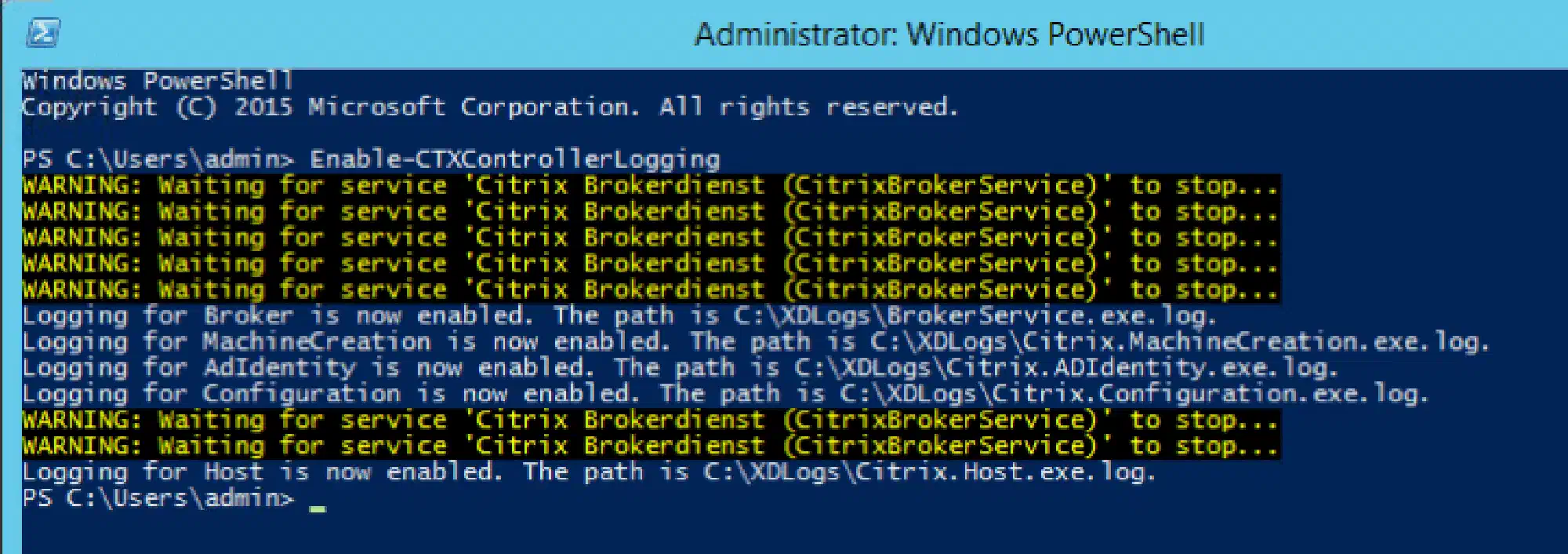
The results are log files for each Citrix controller service or the VDA service. The default log path is C:\XDLogs but you can change that with the parameter -LogPathFolder.
The Future#
It doesn’t stop here. I’m going to add log handling for more Citrix products in the future, e.g. I’m working on the integration of Receiver logging. I will update this blog post accordingly.