
As you may have noticed while reading this blog series I like the idea of automation. It is possible to automate nearly everything in Windows with PowerShell but when it comes to automating the deployment of Windows itself you are tied to some other tools. There are plenty out there: Microsoft System Center Configuration Manager, RES, AppSense, Empirum from Matrix42 and so on. They’re probably good tools for a production environment but not for a lab: too complicated, too slow, too big. For my lab I prefer Microsoft Deployment Toolkit (MDT), it is very lightweight and it is fast - particularly when you compare it to its big brother Configuration Manager. In this post I describe how to automate the installation of MDT and Windows Deployment Services (WDS) to do PXE boot. On top there is a description on how to integrate Chocolatey into MDT.
As always in this series you have to set some variables:
| Variable | Description |
|---|---|
| ADKDownloadURL | MDT needs the Windows ADK. With this variable you define the URL where to get the ADK. |
| ADKOfflinePath | Alternatively, it is possible to specify a path to an already downloaded Windows ADK. I use this at home because I just have a 2 MBit internet link 🙁 |
| MDTDeploymentShareFolder | Defines the path to the MDT deployment share. This is the folder where all your apps and wim files are stored. I prefer to not use the C:\ drive as this folder can get very large. The script will create the folder for you. |
| MDTDeploymentShareName | The name of the share of your MDT deployment share which you defined with the variable MDTDeploymentShareFolder. |
| MDTDownloadURL | This is the URL where to get the MDT setup. As it is a small setup there is no offline alternative. |
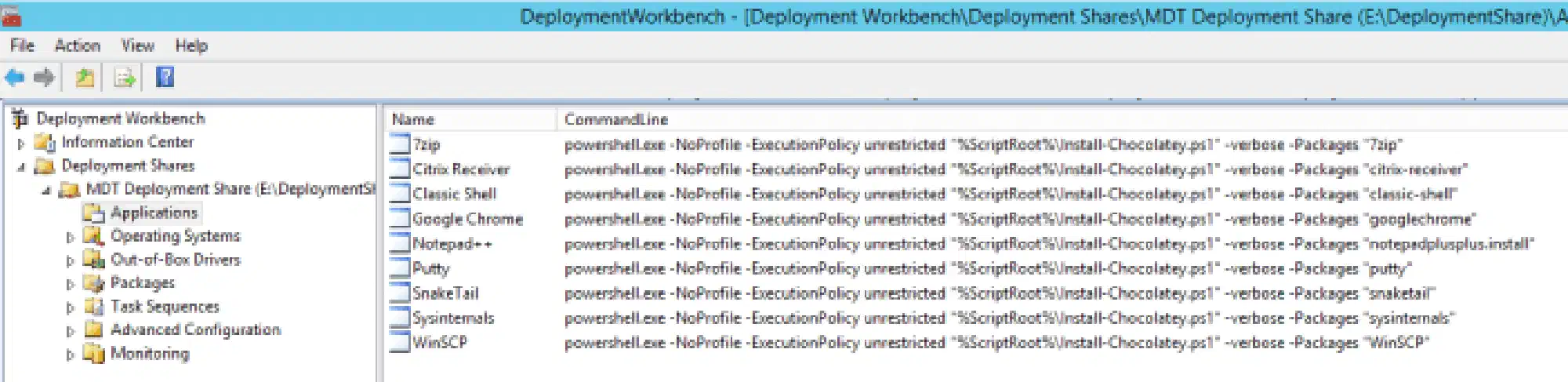
| MDTChocolateyApplications | Array of Chocolatey packages. Each element will get a MDT application. Read below for more information on the Chocolatey integration. |
| WDSRemoteInstallFolder | Path where the WDS boot images will be stored. |
In my lab I use Chocolatey for installing apps. Chocolatey is a package manager for Windows like apt-get for Linux. Eric from XenAppBlog.com did a great job on explaining it in detail here, here and here. To save me a lot of work I use the Chocolatey wrapper from Keith Garner. This wrapper checks if Chocolatey is already installed before installing a package and if not, it installs Chocolatey. I tried to get in contact with Keith on Twitter to ask him if I am allowed to automate the usage of his wrapper, but he didn’t reply. So you have to do some manual steps:
- Download the wrapper
Install-Chocolatey.ps1from Keith’s MDT Extras repository. The original CodePlex link is dead since CodePlex was shut down; the file now lives in Keith’s DeployShared repository on GitHub. - Copy the
Install-Chocolatey.ps1to the scripts folder in your MDT deployment share ($MDTDeploymentShareFolder\Scripts)
After the script has finished you have a complete MDT implementation with PXE boot for your targets, boot images already configured and some Chocolatey apps to work with.
Install-LabMDT.ps1:
<#
     .SYNOPSIS
     This script will install MDT and Windows Deployment Services with all the prerequisites in your lab

     .NOTES
     You need a Windows Server 2012 R2 for this script to work.
     This script is part of a series to automate your lab on www.dominikbritz.com
#>

#Requires -Version 3
#Requires -RunAsAdministrator

###
### Variables
###
$ADKDownloadURL = 'https://go.microsoft.com/fwlink/p/?linkid=859206' # This is the URL for Windows ADK 10 v1709. You can provide another URL if you like.
$ADKOfflinePath = 'C:\install\adkSetup.exe' # The path to the ADK offline installer. If the variable is filled then the script will ignore the variable $ADKDownloadURL

$MDTDownloadURL = 'https://download.microsoft.com/download/3/3/9/339BE62D-B4B8-4956-B58D-73C4685FC492/MicrosoftDeploymentToolkit_x64.msi' # This is the URL for MDT 8443. You can provide another URL if you like.
$MDTDeploymentShareFolder = 'E:\DeploymentShare'
$MDTDeploymentShareName = 'DeploymentShare'
$MDTChocolateyApplications = @('7zip','citrix-receiver','googlechrome','notepadplusplus','putty','snaketail','sysinternals','WinSCP') # You need a chocolatey wrapper in order for this to work https://keithga.wordpress.com/2014/11/25/new-tool-chocolatey-wrapper-for-mdt/

$WDSRemoteInstallFolder = 'E:\RemoteInstall'

$ErrorActionPreference = 'Stop'

###
### Script
###
Try
{
    If ($ADKOfflinePath)
    {
        Write-Output 'Installing ADK 10 Offline'
        Start-Process -FilePath $ADKOfflinePath -ArgumentList '/norestart /q /ceip off /features OptionId.WindowsPreinstallationEnvironment OptionId.DeploymentTools OptionId.UserStateMigrationTool' -Wait
    }
    Else
    {
        Write-Output 'Installing ADK 10 Online'
        Invoke-WebRequest $ADKDownloadURL -OutFile $(Join-Path $env:TEMP 'AdkSetup.exe')
        Start-Process -FilePath $(Join-Path $env:TEMP 'AdkSetup.exe') -ArgumentList '/norestart /q /ceip off /features OptionId.WindowsPreinstallationEnvironment OptionId.DeploymentTools OptionId.UserStateMigrationTool' -Wait
    }
    Write-Output 'Adding Windows feature NET-Framework-Core'
    Add-WindowsFeature NET-Framework-Core

    Write-Output 'Adding Windows feature Windows Deployment System'
    Add-WindowsFeature WDS -IncludeManagementTools

    Write-Output 'Installing MDT'
    Invoke-WebRequest $MDTDownloadURL -OutFile $(Join-Path $env:TEMP 'MicrosoftDeploymentToolkit2013_x64.msi')
    Start-Process -FilePath msiexec.exe -ArgumentList "/i $(Join-Path $env:TEMP 'MicrosoftDeploymentToolkit2013_x64.msi') /qn" -Wait

    Write-Output 'Setting up MDT'
    mkdir $MDTDeploymentShareFolder
    $Share = [wmiClass]'Win32_share'
    $Share.create($MDTDeploymentShareFolder,$MDTDeploymentShareName,0)

    Import-Module 'C:\Program Files\Microsoft Deployment Toolkit\Bin\MicrosoftDeploymentToolkit.psd1' -Force
    New-PSDrive -Name 'DS001' -PSProvider 'MDTProvider' -Root $MDTDeploymentShareFolder -NetworkPath "\\$env:COMPUTERNAME\$MDTDeploymentShareName" -Description 'DeploymentShare' -Verbose | Add-MDTPersistentDrive -Verbose
    New-Item -path 'DS001:\Operating Systems' -enable 'True' -Name 'Windows10' -Comments '' -ItemType folder -Verbose
    New-Item -path 'DS001:\Operating Systems' -enable 'True' -Name 'Windows2012R2' -Comments '' -ItemType folder -Verbose
    New-Item -path 'DS001:\Task Sequences' -enable 'True' -Name 'Windows10' -Comments '' -ItemType folder -Verbose
    New-Item -path 'DS001:\Task Sequences' -enable 'True' -Name 'Windows2012R2' -Comments '' -ItemType folder -Verbose
    $MDTChocolateyApplications | % {
        $Package = $_
        $Path = "powershell.exe -NoProfile -ExecutionPolicy unrestricted `"%ScriptRoot%\Install-Chocolatey.ps1`" -verbose -Packages `"$Package`""
        Import-MDTApplication -path "DS001:\Applications" -Name $Package -ShortName $Package -NoSource -CommandLine $Path -Enable $true
     }
    Update-MDTDeploymentShare -path 'DS001:' -Verbose

    Write-Output 'Setting up WDS'
    Start-Process -FilePath WDSUTIL -ArgumentList "/Initialize-Server /RemInst:`"$WDSRemoteInstallFolder`"" -Wait
    Stop-Service WDSServer -ErrorAction SilentlyContinue
    Start-Service WDSServer
    Import-WdsBootImage -NewImageName 'Lite Touch Windows PE (x64)' -path $(Join-Path $MDTDeploymentShareFolder 'Boot\LiteTouchPE_x64.wim')
    Import-WdsBootImage -NewImageName 'Lite Touch Windows PE (x86)' -path $(Join-Path $MDTDeploymentShareFolder 'Boot\LiteTouchPE_x86.wim')

}
Catch
{
    Throw $_
}