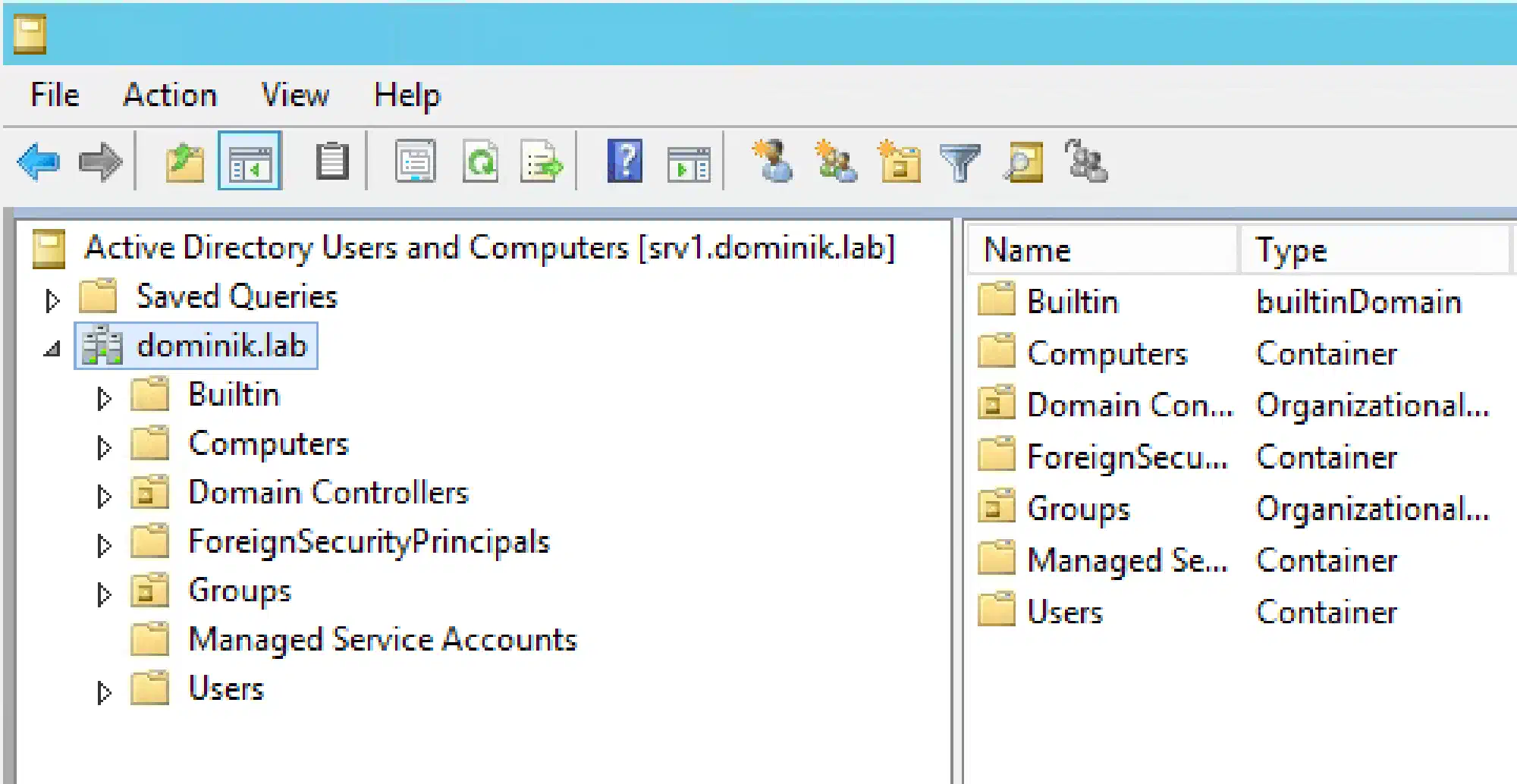
After you created all your infrastructure services like AD, DNS and DHCP in this part of the series we are going to add “life” to your Active Directory. At the moment you have an empty AD like this:
After running the script it will look like this:
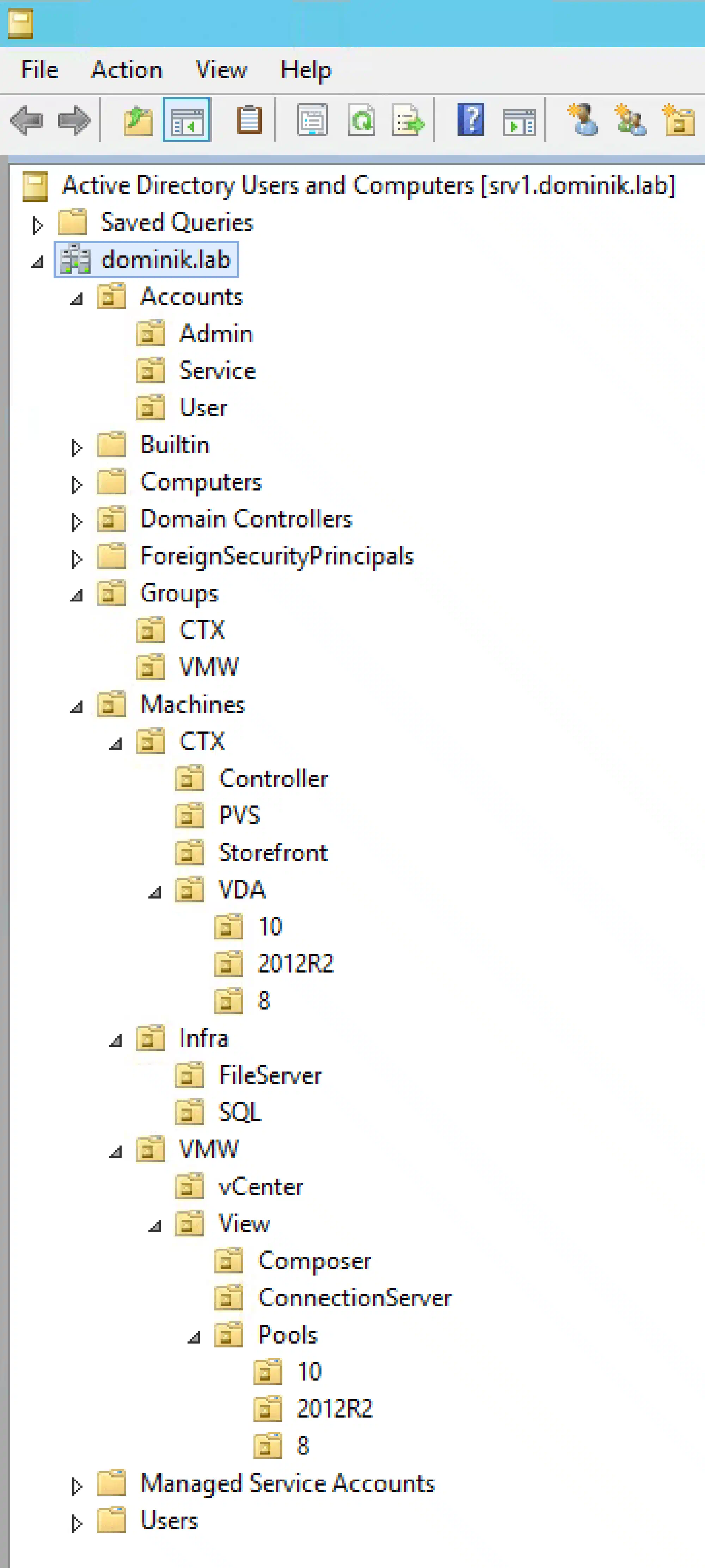
You can customize the structure of your AD with csv files. There are csv files for OUs, groups and users.
You can call the script from the command line, e.g.
.\Install-LabADObjects.ps1 -Domain 'DC=dominik,DC=lab' -PathToOUsCSV .\OUs.csv -PathToGroupsCSV .\Groups.csv -PathToUsersCSV .\Users.csvOr you can edit the variables (path to the csv files etc.) in the script directly.
Creating OUs#
For creating OUs you just need to enter the names for the OUs - you must not use the LDAP syntax. It’s much easier to read. As the PowerShell cmdlet New-ADOrganizationalUnit does not support creation of OUs recursively, you have to ensure that all parent OUs already exist. To accomplish that just start with the parent OU in the csv and then specify the child OUs. E.g. if you want to create the OU SQL in the path Machines/Infra this is what the csv would look like:
Machines
Machines;Infra
Machines;Infra;SQL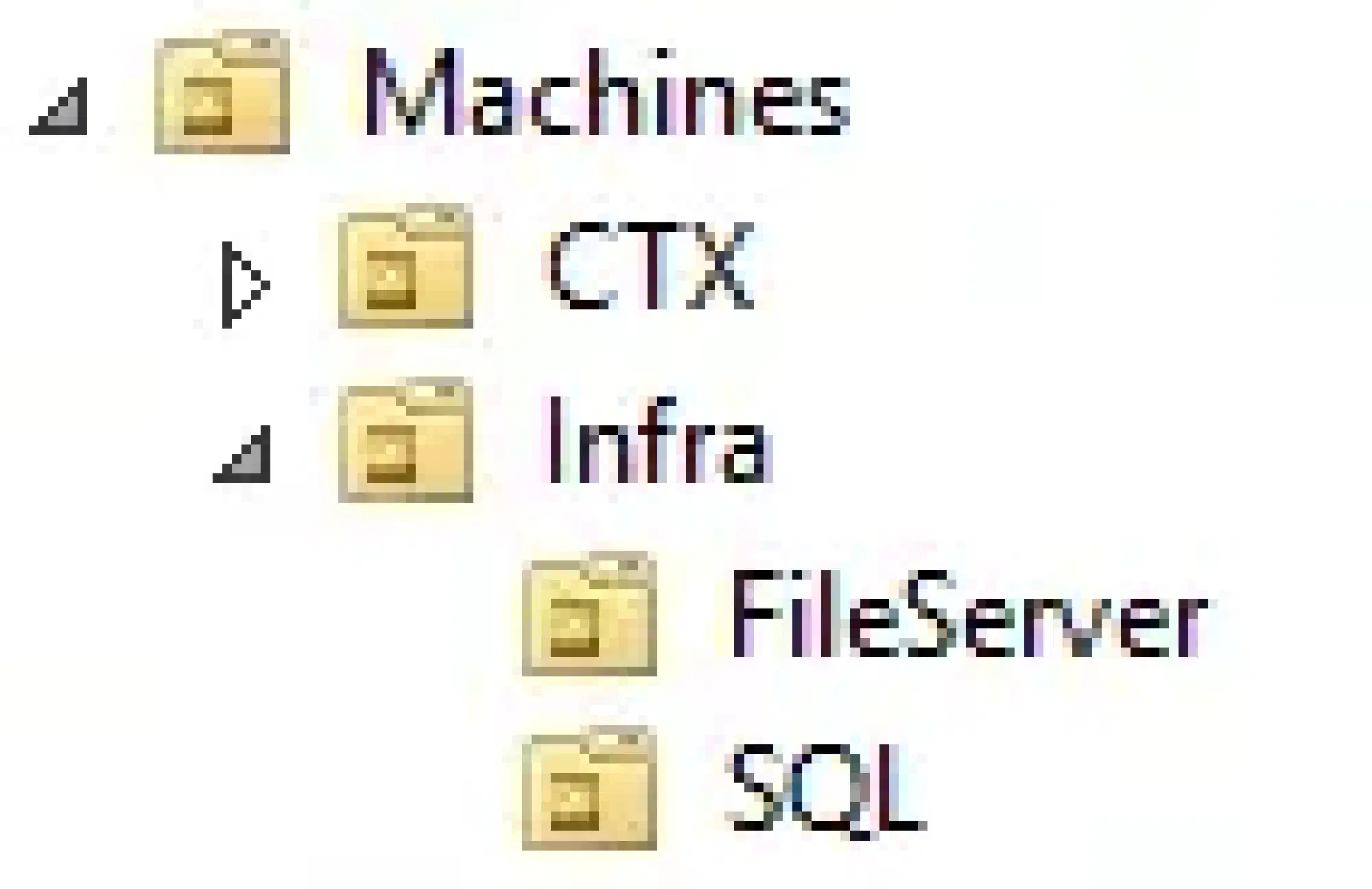
Creating Groups#
The following fields are available in the csv:
- Name [Name of the group]
- Category [Security or Distribution]
- Scope [DomainLocal, Global or Universal]
- Path [LDAP path to an OU; variables will be expanded]
E.g. if you want to create the global security group CtxAdmins in the OU Groups/CTX the csv file would be the following:
Name;Category;Scope;Path
CtxAdmins;Security;Global;OU=CTX,OU=Groups,$Domain
The variable $Domain is specified in the script or as a parameter on the command line.
Creating Users#
Basically the same as creating groups. The following fields are available:
- Name [Name of the user]
- Path [LDAP path to an OU; variables will be expanded]
- MemberOf [DisplayName of an AD group the user will get member of. “Domain Users” is default.]
The Script#
Install-LabADObjects.ps1:
<#
     .SYNOPSIS
     This script will set up OUs, groups and users in your domain. The configuration is stored in csv files.

     .NOTES
     You need a Windows Server 2012 R2 for this script to work.
     This script is part of a series to automate your lab on www.dominikbritz.com
#>


#Requires -Version 3
#Requires -RunAsAdministrator


#region Variables
PARAM
(
    $Domain = 'DC=dominik,DC=lab',
    $PathToOUsCSV = ".\OUs.csv",
    $PathToGroupsCSV = ".\Groups.csv",
    $PathToUsersCSV = ".\Users.csv",
    $OUProtected = $False,
    $UserPassword = (Read-Host 'Enter the password for you user accounts' -AsSecureString)
)
#endregion


#region Script
Write-Output 'Processing OUs'
$OUs = Get-Content -Path $PathToOUsCSV
Foreach ($OU in $OUs) {
    $OUPath = $null
    If ($OU -notmatch ';')
    {
        $OUName = $OU
        $OUPath = $Domain
    }
    Else
    {
        $reverse = $OU.split(';')
        [array]::Reverse($reverse)
        $OUName = $reverse[0]
        $reverse = $reverse[1 .. $reverse.Length]
        Foreach ($item in $reverse) {
        $OU = 'OU=' + $item + ','
        $OUPath += $OU
        }
        $OUPath = $OUPath + $Domain
    }
    New-ADOrganizationalUnit -Name $OUName -Path $OUPath -ProtectedFromAccidentalDeletion $OUProtected -Verbose
}


Write-Output 'Processing Groups'
$Groups = Import-CSV -Path $PathToGroupsCSV -Delimiter ';'
Foreach ($Group in $Groups) {
    $Path = $ExecutionContext.InvokeCommand.ExpandString($Group.Path)
    New-ADGroup -Name $Group.Name -GroupCategory $Group.Category -GroupScope $Group.Scope -Path $Path -Verbose
}


Write-Output 'Processing Users'
$Users = Import-Csv -Path $PathToUsersCSV -Delimiter ';'
Foreach ($User in $Users) {
    $Path = $ExecutionContext.InvokeCommand.ExpandString($User.Path)
    New-ADUser -Name $User.Name -Path $Path -Enabled $true -CannotChangePassword $true -ChangePasswordAtLogon $False -PasswordNeverExpires $true -AccountPassword $UserPassword -Verbose

    If ($User.MemberOf)
    {
        Add-ADGroupMember -Identity $User.MemberOf -Members $User.Name
    }
}
#endregion
My Standard Set Of CSV Files#
OUs.csv:
Accounts
Accounts;Admin
Accounts;Service
Accounts;User
Groups
Groups;CTX
Groups;VMW
Machines
Machines;CTX
Machines;CTX;Controller
Machines;CTX;PVS
Machines;CTX;Storefront
Machines;CTX;VDA
Machines;CTX;VDA;8
Machines;CTX;VDA;10
Machines;CTX;VDA;2012R2
Machines;Infra
Machines;Infra;FileServer
Machines;Infra;SQL
Machines;VMW
Machines;VMW;vCenter
Machines;VMW;View
Machines;VMW;View;Composer
Machines;VMW;View;ConnectionServer
Machines;VMW;View;Pools
Machines;VMW;View;Pools;8
Machines;VMW;View;Pools;10
Machines;VMW;View;Pools;2012R2Groups.csv:
Name;Category;Scope;Path
CtxAdmins;Security;Global;OU=CTX,OU=Groups,$Domain
CtxUsers;Security;Global;OU=CTX,OU=Groups,$Domain
VmwAdmins;Security;Global;OU=VMW,OU=Groups,$Domain
VmwUsers;Security;Global;OU=VMW,OU=Groups,$DomainUsers.csv:
Name;Path;MemberOf
ctxadmin;OU=Admin,OU=Accounts,$Domain;CtxAdmins
vmwadmin;OU=Admin,OU=Accounts,$Domain;VmwAdmins
svc_ctx;OU=Service,OU=Accounts,$Domain;
svc_vmw;OU=Service,OU=Accounts,$Domain;
user1;OU=User,OU=Accounts,$Domain;CtxUsers
user2;OU=User,OU=Accounts,$Domain;VmwUsers