
I have three labs. One on my business notebook, one at my company and one on my private workstation. And once a year it is time to rebuild from scratch, because I have destroyed everything 🙂
As I have no time (and/or because I’m lazy) to set up everything manually - three times!!! - I have written PowerShell scripts to set up my labs quickly. In this first part of the series I start with the domain.
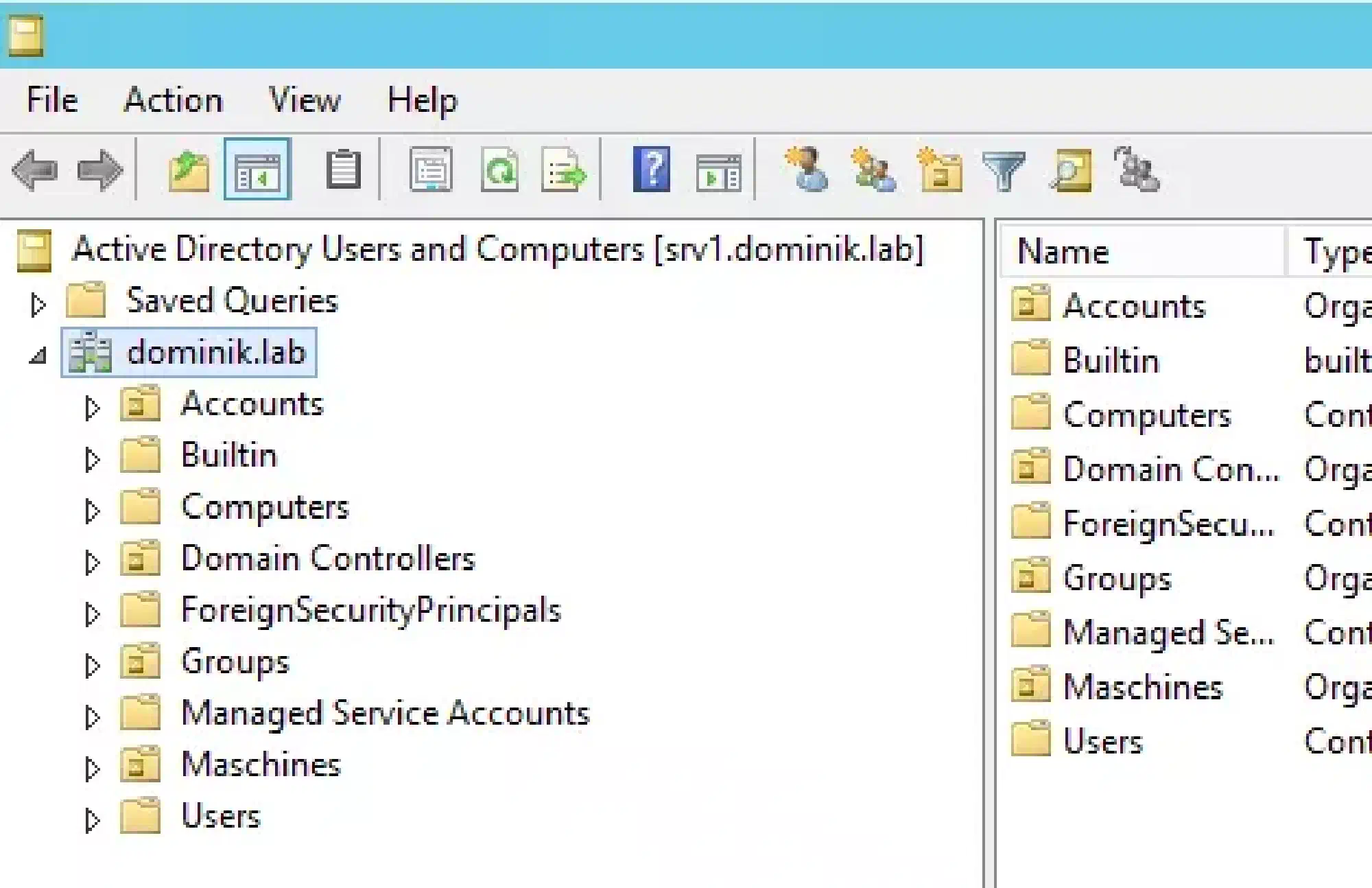
For the scripts to work I assume that you have a Windows Server 2012 R2 which will be your domain controller, DNS and DHCP server.
Install-LabDomain.ps1:
<#
    .SYNOPSIS
    This script will set up a domain in your lab
    .NOTES
    You need a Windows Server 2012 R2 for this script to work.
    This script is part of a series to automate your lab on www.dominikbritz.com
#>


#Requires -Version 3
#Requires -RunAsAdministrator


###
### Variables
###
$DomainName = 'dominik.lab'
$DomainNetbiosName = $DomainName.split('.')[0]
$Computer = $env:COMPUTERNAME
$Password = Read-Host 'Enter the SafeModeAdminPassword' -AsSecureString


###
### Script
###


Write-Output 'Check if running as account "Administrator"'
If (-not($env:USERNAME -eq 'Administrator'))
{
    Throw 'Please login with the local account "Administrator"'
}


# Check if I was silly and forgot to change the computer name to something usefull like DC01 etc.
If ((Read-Host "Computername is $Computer. This will be the name of your first DC. Proceed? (y/n)") -eq 'y')
{
    Try
    {
        Write-Output 'Add Windows features'
        Add-WindowsFeature 'RSAT-AD-Tools'
        Add-WindowsFeature -Name 'ad-domain-services' -IncludeAllSubFeature -IncludeManagementTools
        Add-WindowsFeature -Name 'dns' -IncludeAllSubFeature -IncludeManagementTools
        Add-WindowsFeature -Name 'gpmc' -IncludeAllSubFeature -IncludeManagementTools
        Add-WindowsFeature -Name 'rds-licensing'
        Add-WindowsFeature -Name 'rds-licensing-ui'

        Write-Output 'Set password to never expire'
        $account = [ADSI]("WinNT://$Computer/Administrator,user")
        $cred =  New-Object -TypeName System.Management.Automation.PSCredential -ArgumentList $account, $Password
        $Account.SetPassword($Cred.GetNetworkCredential().Password)
        $account.invokeSet('userFlags',($account.userFlags[0] -BOR 65536))
        $account.commitChanges()

        Write-Output "Add new forest and domain $DomainName"
        Import-Module ADDSDeployment
        $Arguments = @{
        CreateDnsDelegation = $false
        DatabasePath = 'C:\Windows\NTDS'
        DomainMode = 'Win2012R2'
        DomainName = $DomainName
        DomainNetbiosName = $DomainNetbiosName
        ForestMode = 'Win2012R2'
        InstallDns = $true
        LogPath = 'C:\Windows\NTDS'
        NoRebootOnCompletion = $true
        SysvolPath = 'C:\Windows\SYSVOL'
        SafeModeAdministratorPassword = $Password
        Force = $True
        }
        Install-ADDSForest @Arguments
        Write-Output 'Please reboot the server'
    }
    Catch
    {
        Throw $_
    }
}